# Getting Started
## Enable Developer Mode
The first thing to do to develop connected workbooks with XLConnect is to enable `Developer Mode`. When you do **not** have this enabled, your ribbon will looks like this:
XLConnect ribbon in User Mode
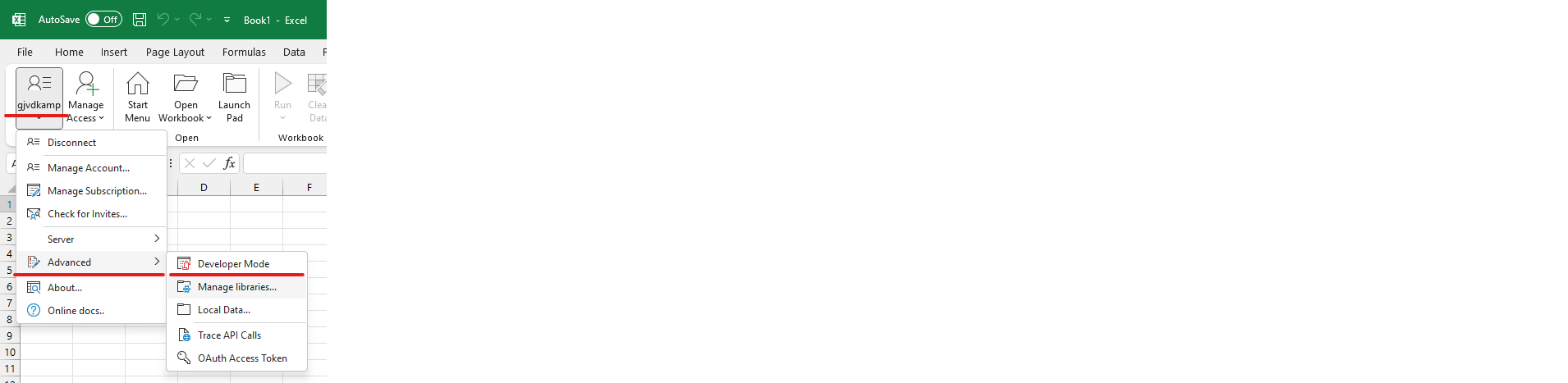
To enable developer options, go to `Settings > Advanced > Developer Mode`
Developer Mode Menu Option
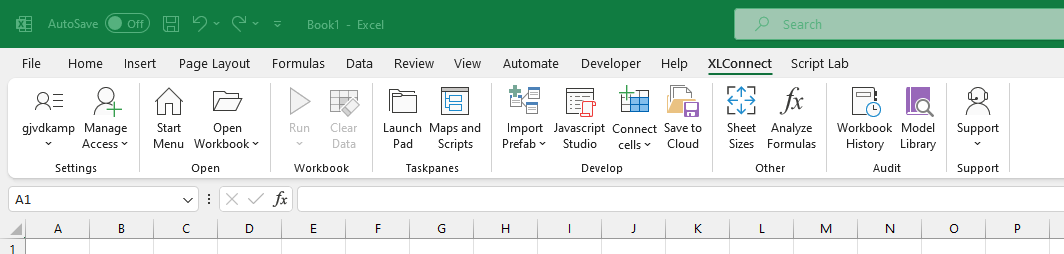
If you have the developer option enabled for your account, your ribbon should now look like this (notice a number of new buttons appearing):
XLConnect Ribbon in Developer Mode
## Finding your way around
Here is a quick rundown of the new buttons on your ribbon:
* **Taskpanes**
* **Maps and Scripts** opens a taskpane on the right where you can see and edit the [Maps ](https://docs.xlconnect.net/xlconnect-documentation/developing-with-xlconnect/maps)and [Scripts ](https://docs.xlconnect.net/xlconnect-documentation/developing-with-xlconnect/javascript/javascript-studio)in the workbook.
* **Develop**
* **Import Prefab** let's you [import ready made scripts](https://docs.xlconnect.net/xlconnect-documentation/developing-with-xlconnect/import-scripts) to connect to your cloud platform by dragging and dropping elements, without having to write any code
* **Javascript Studio** is the [javascript editor](https://docs.xlconnect.net/xlconnect-documentation/developing-with-xlconnect/scripts) that comes with XLConnect, that allows you to write code and see the results.
* **Connect Cells** lets you [add workbook cells](https://docs.xlconnect.net/xlconnect-documentation/maps#adding-cells-ranges-and-tables-to-a-map), ranges and tables to maps and scripts.
* **Save to Cloud** saves your workbook to the database, so users can open it through Open Workbook.
* **Other**
* **Sheet Sizes** lets you see the Used Ranges in your workbook, to find cells that appear empty but are 'used', bloating your workbook size without adding any value.
* **Analyze Formulas** lets you drill through formulas in a tree format instead of the normal arrows.
* **Audit**
* **Workbook history** shows the all the versions of the workbook that have been save to the cloud, allowing you to rollback to a sepcific version if required.
* **Model Library** shows all workbooks on the cloud with their versions.